CS2 Skin Inspect Servers Explained

CS2 Skin Inspect Servers Explained
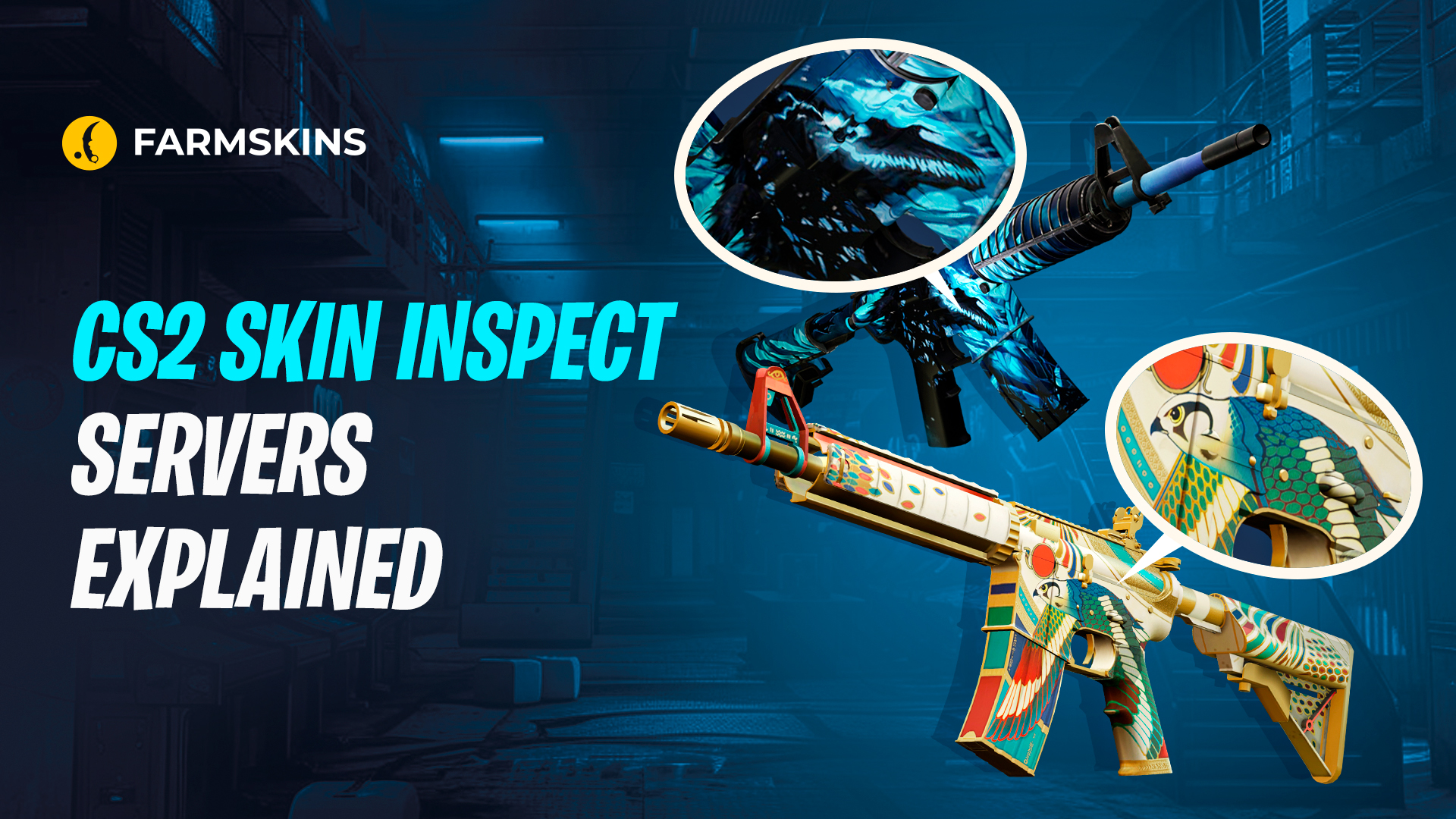
While trading skins in Counter-Strike 2 has been on the rise, CS2 skin inspect servers have seen a rise in importance. These servers give players the opportunity to assess the aesthetics of a skin before the deal is done, helping save a player from an impulsive purchase. By using a CS2 skin inspect server, players can ensure they are making the right decision and avoid regret.
Whether you’re a casual player or a dedicated trader, CS2 inspect server offers a safe and easy way to make informed choices about your skins. The CS2 inspect server provides a better experience by allowing you to view skins in more detail, making it a vital tool for anyone in the CS2 skin trading community.
"1. CS2 Skin Inspect Servers Explained","1.1. What Are Skin Inspect Servers?","1.2. How Do Skin Inspect Servers Work?","1.3. How to Join a Skin Inspect Server","1.4. Risk and safety","1.5. Conclusion"
What Are Skin Inspect Servers?
Skin inspect servers СS2 are specialized platforms that allow players to view skins in real gameplay environments without actually owning them. These servers give users the ability to upload or request the visual parameters of a particular skin, which are then loaded into the game for detailed inspection.
These servers are especially useful for traders, collectors, or players who want to ensure that the skin they’re considering meets their expectations before committing to a purchase. By connecting to these servers through console commands, players can easily access and view various skins, giving them an edge in the increasingly competitive CS2 skin market.
How Do Skin Inspect Servers Work?
CS2 skin inspect servers function by allowing players to preview skins through specific commands that load the desired skin into a game session for inspection. The process typically begins with the player generating or copying an inspect link, which is a URL linked to a specific skin from the Steam Market or other skin trading platforms. Players then use this link, either through in-game commands or third-party platforms, to request the skin’s appearance to be rendered on the server.
Once the inspect link is submitted, the server creates a game session where the skin is loaded with its specific attributes, such as its wear level, finish, or any unique effects. Players can then join the session and examine the skin from all angles, including during animations like shooting or reloading. This offers a more accurate representation of the skin’s appearance than static marketplace images. Most CS2 skin servers allow users to access this service through developer console commands by inputting a server address like connect inspect.epidemic.gg.
How to Join a Skin Inspect Server
Joining an inspect server CS2 is a straightforward process that involves enabling the developer console and connecting to a trusted server. Here’s a step-by-step guide:
Enable the Developer Console:
Launch CS2 and open the settings menu by clicking the gear icon.
-
Navigate to the “Game” tab.
-
Locate and enable the “Developer Console” by setting it to “Yes.”
-
You can now access the console by pressing the ~ key (below the ESC key on most keyboards).
Find a Trusted Skin Inspect Server:
There are several skin inspect servers available, but it’s important to connect to reliable ones to ensure your account and skins remain safe. Popular servers include Epidemic’s network (connect inferno.epidemic.gg) and other third-party platforms.
Connect to the Server:
-
Copy the server’s address (e.g., connect inferno.epidemic.gg).
-
Open your developer console in CS2, paste the address, and hit enter.
-
The game will then connect you to the chosen server, allowing you to inspect skins.
Inspect Skins Using Inspect Links:
-
If you have an inspect link from the Steam Market or a skin trading platform, you can use it to preview a specific skin.
-
Some servers allow you to use the !gen command to generate a code that will display the skin in-game. Simply paste the link or command in the console to load the skin.
Risk and safety
Using third-party CS2 skin inspect servers comes with risks, such as scams, phishing attempts, and inventory theft. Unverified servers may steal your account data or skins by requesting excessive permissions. To stay safe, use trusted platforms like Epidemic or inspect skins through Steam’s official market feature, which offers more security. Avoid connecting to unknown servers, as they could compromise your account
How to protect your CS2 account?
Conclusion
CS2 inspect servers are a useful tool for previewing skins, but it’s essential to use trusted platforms to avoid scams and account theft. By using a reliable CS2 skin inspect server, you can ensure that the skins you are inspecting are displayed correctly, minimizing the risk of being scammed.
By following best practices and opting for secure methods, you can inspect skins safely and make informed decisions. A reputable CS2 inspect server offers a safe environment to check skins before finalizing any trades, helping to protect your account and assets.
.jpg)
.jpg)
.jpg)
.jpg)
.jpg)
.jpg)
.jpg)
.jpg)

.jpg)
.jpg)
.jpg)
.jpg)


.jpg)
.jpg)
.jpg)
.jpg)
