How to Enable and Disable the Steam Overlay

How to Enable and Disable the Steam Overlay
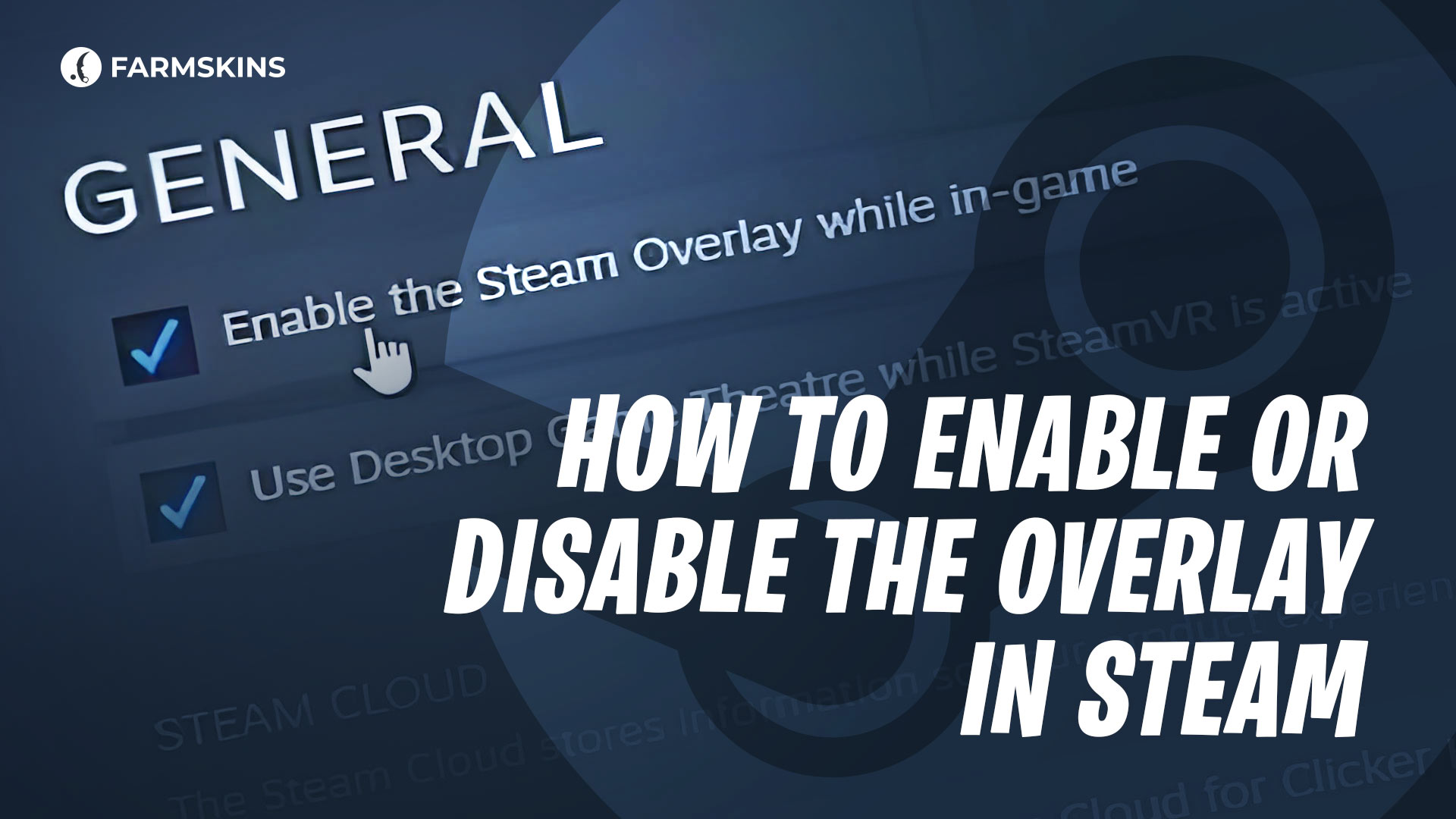
The Steam Overlay is an integrated interface that appears on top of your game, allowing you to access Steam features without minimizing or closing the game . In simple terms, you can open the overlay with the Shift + Tab shortcut by default, and it gives you quick access to your friends list, chat, achievements, the in-game store, browser, and other features . Below, we’ll explain what the Steam Overlay is, why you might want to enable or disable it, and how to do it globally or for specific games.
What Is the Steam Overlay, Why Enable or Disable the Overlay, How to Enable or Disable the Overlay for All Games, How to Enable or Disable the Overlay for a Specific Game
What Is the Steam Overlay
The Steam Overlay is part of the Steam client that appears on top of your game window. When it’s active, you can use many useful Steam features while still in-game. For example, you can chat with friends, view your friends list, browse guides, check achievements, take screenshots, or even purchase in-game items . All of this works without leaving the game, as the overlay appears as a semi-transparent layer you can close at any time to continue playing.
By default, you can open the overlay by pressing Shift + Tab. This key combination can be changed in Steam settings. When opened, the overlay darkens the game slightly and shows the Steam interface — friends, chat, achievements, community, and browser tabs. When closed, your game resumes as usual.
Why Enable or Disable the Overlay
The Steam Overlay adds convenience, but there are times when disabling it can be useful. Here are the main reasons you might want to enable or disable it:
Access to Steam Features. When enabled, the overlay lets you use Steam’s tools during gameplay — chat, guides, achievements, and browsing — without tabbing out .
Fixing Bugs or Crashes. Sometimes, the overlay can cause issues like freezing or crashes. If this happens, disabling it can help troubleshoot or solve the problem .
Improving Performance. The overlay uses a small amount of system resources. On powerful PCs, it doesn’t matter, but on older or weaker systems, disabling it can slightly increase FPS — by around 10% on average .
Reducing Distractions. If you prefer a clean screen without notifications (friends online, achievements, etc.), disabling the overlay removes all these pop-ups.
In short: enable the overlay if you frequently use Steam features during games, and disable it if you want maximum performance, fewer bugs, or an uncluttered screen.
How to Enable or Disable the Overlay for All Games
To turn the overlay on or off globally in Steam:
Open Steam Settings. Launch Steam, click Steam → Settings in the top-left corner .
Go to the “In-Game” Section. Select In-Game on the left sidebar .
Toggle the Overlay Option. Find “Enable the Steam Overlay while in-game” and either check (to enable) or uncheck it (to disable) .
Save Changes. Click OK to apply the change. Restart Steam if necessary .
Once changed, this setting applies to all games in your library. If the overlay is disabled, pressing Shift + Tab won’t open anything in any game.
Why the Steam Market Might Not Work
How to Enable or Disable the Overlay for a Specific Game
If you want to disable the overlay only for one game, follow these steps:
Open Your Steam Library.
Right-click the game and select Properties .
In the General tab, find “Enable the Steam Overlay while in-game.”
Check or uncheck the box to turn it on or off for that specific game .
Close the window — changes are saved automatically.
Note: The overlay only works if the global option is enabled and the game is launched through Steam.
Now you know what the Steam Overlay is, when it’s useful, and how to control it. The Steam Overlay is a handy feature for gamers who like convenience and quick access to community tools, but it’s completely optional. You can always enable or disable it anytime — whatever works best for your setup.


